A parent account allows you to:
Set up student accounts for your child or children, quickly and easily
Monitor your student's progress on an ongoing basis
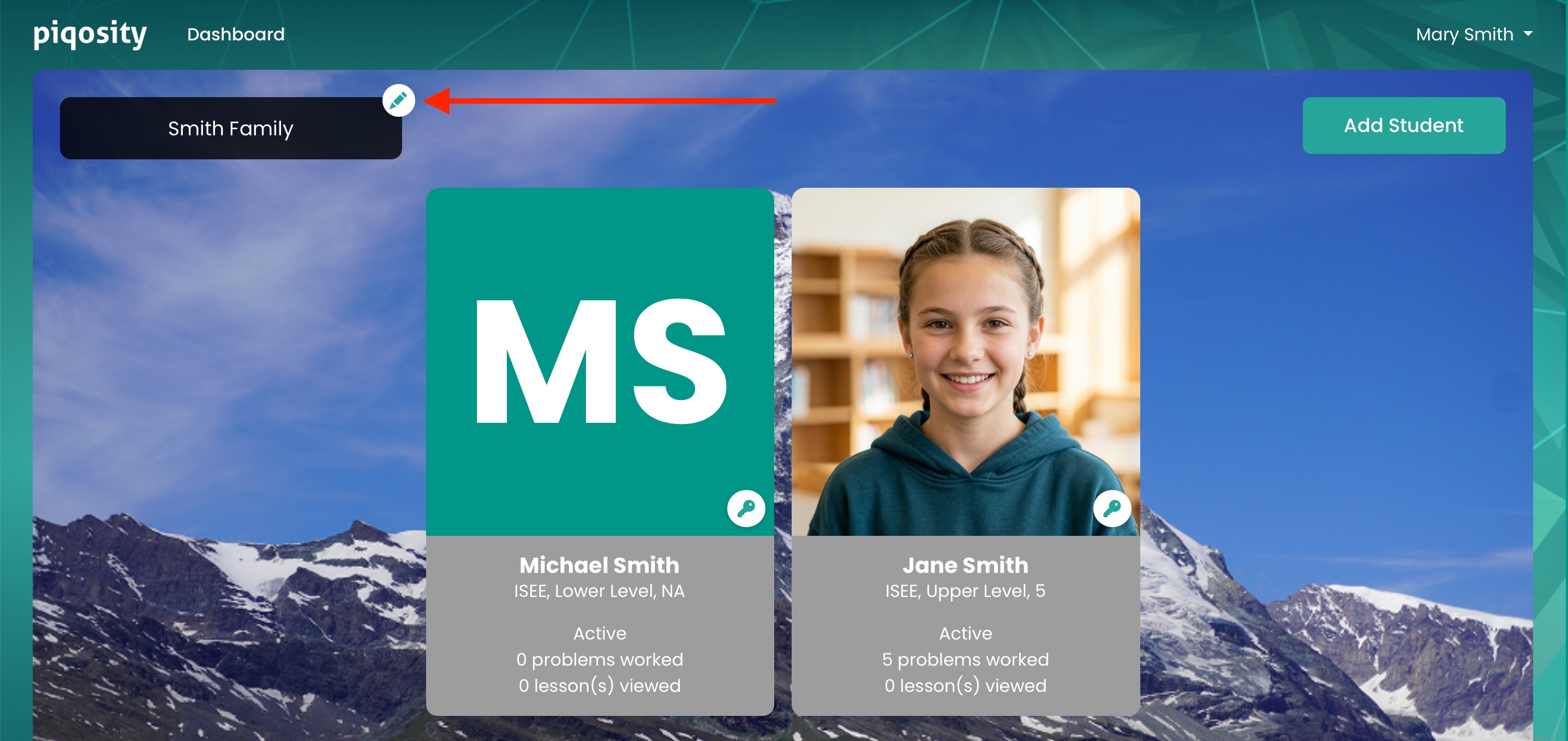
With a parent account, you can quickly assess your student's Piqosity performance by viewing a snapshot of their stats on your Dashboard, or by "impersonating" their account to get the full picture. If your child signed up for Piqosity before you did, you can also attach their existing student account to your parent account.
Adding Student Accounts
There are three ways to attach students to your parent account:
- Create a new student at registration
- Create a new student from your Dashboard or Profile
- Invite an existing student from your Dashboard or Profile
1. Creating a New Student at Registration
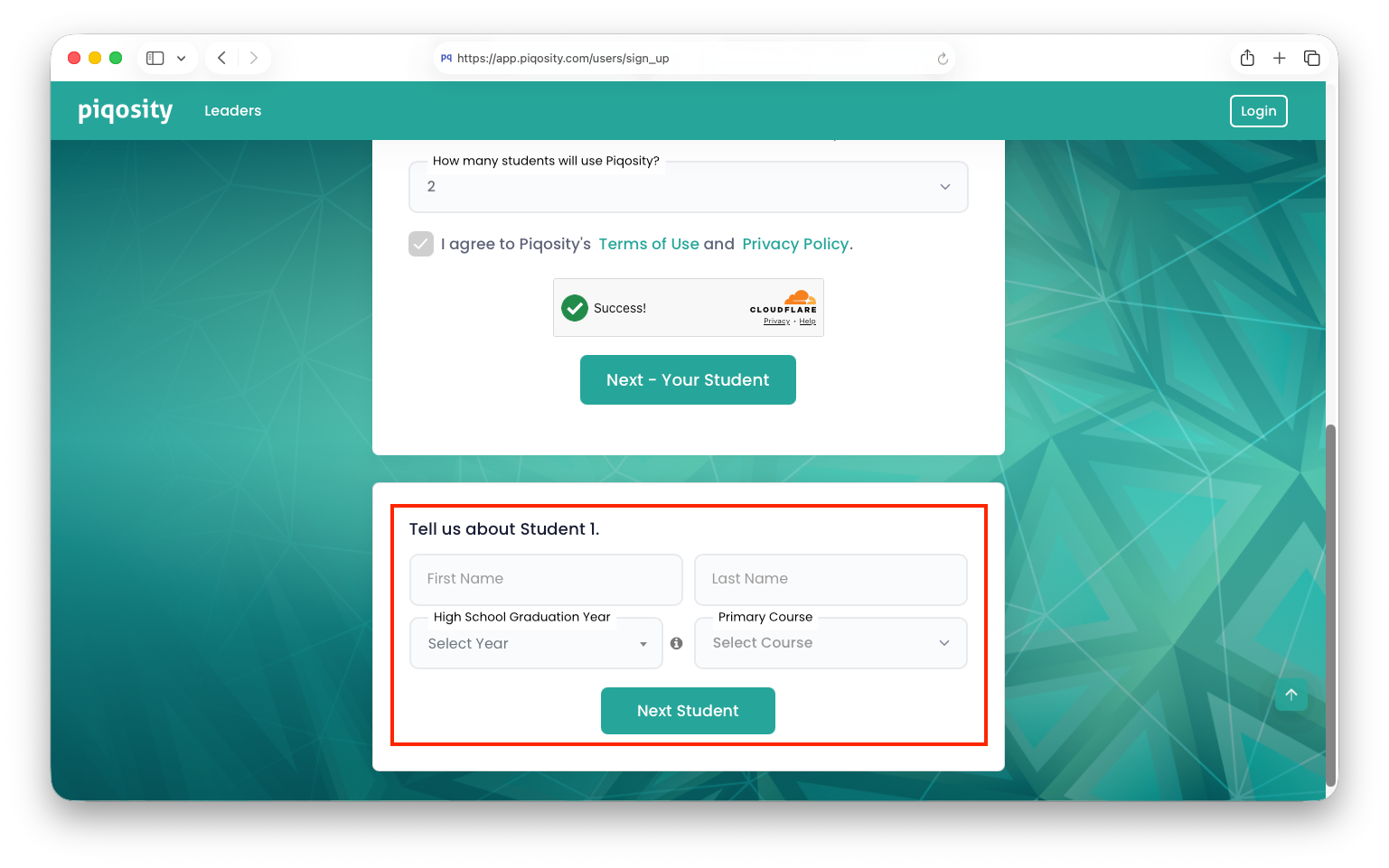
When you sign up as a parent, you will be asked how many students you have who will use Piqosity (at least 1 is required). The registration screen will automatically walk you through the basic details needed to establish each student account:
- First Name
- Last Name
- High School Graduation Year
- Primary Course (you can add other courses later)
2. Creating a New Student from Your Dashboard or Profile
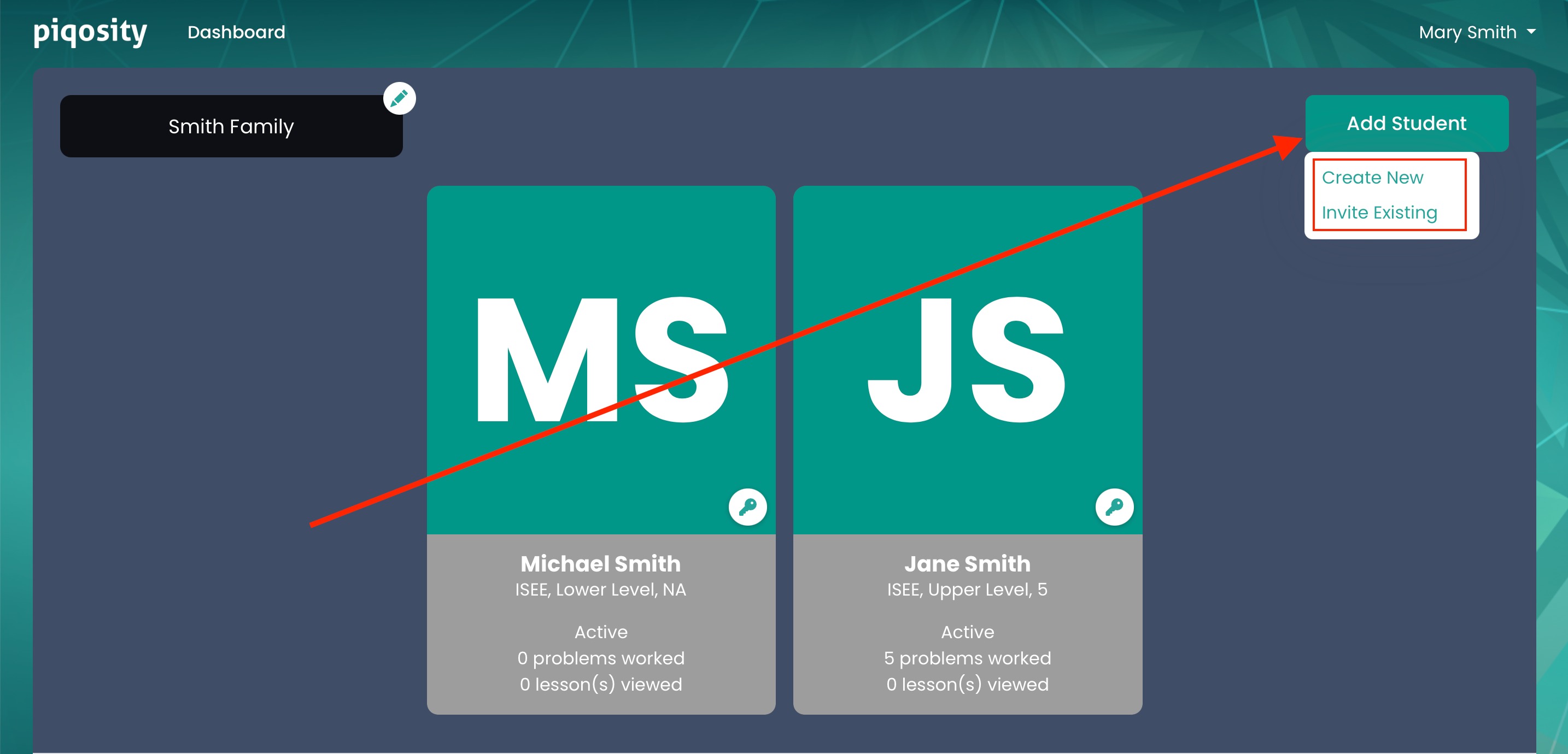
If you need to add additional students later, you can do so by clicking Add Student from the Dashboard or profile (Students tab) and then clicking Create New.
3. Inviting an Existing Student
If your child already has a Piqosity student account, you can invite them to be connected to your parent account. Just choose Invite Existing from the Add Student menu and enter their e-mail address.
After sending the invitation, you'll see the student in your account with the text, "Invitation Pending." To complete the link, your student just needs to navigate to the Alerts page on their account and click the green checkmark.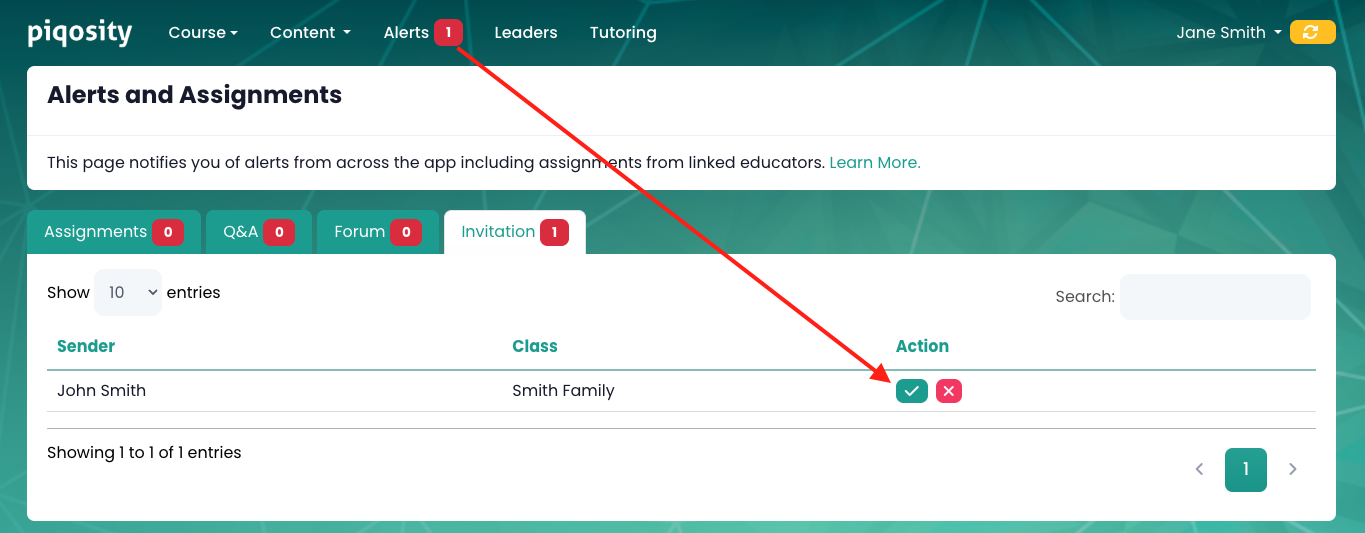
Managing Student Login Credentials
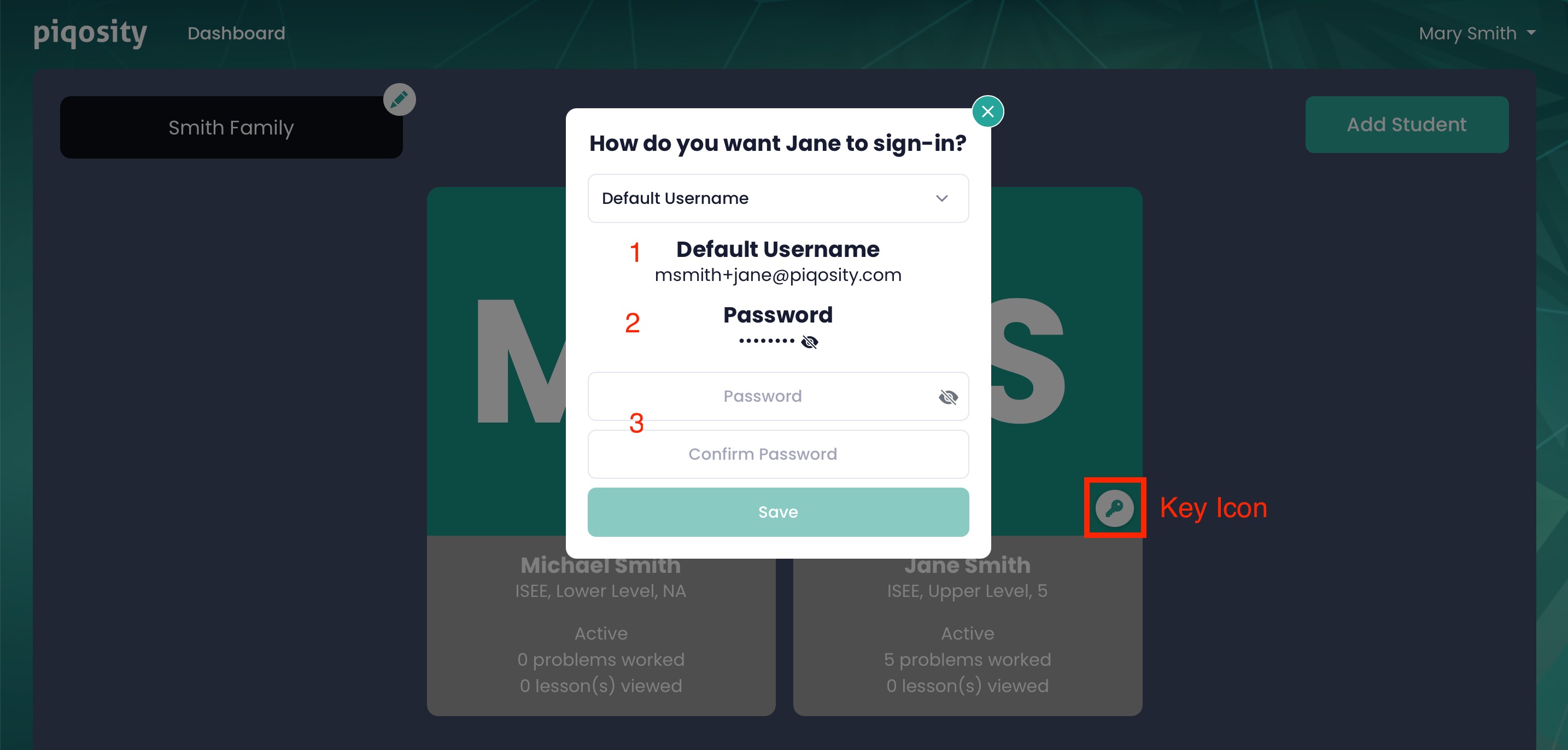
Once your students have been added to your account, you can click the key icon to manage how they log into Piqosity. The options are:
- Default Username
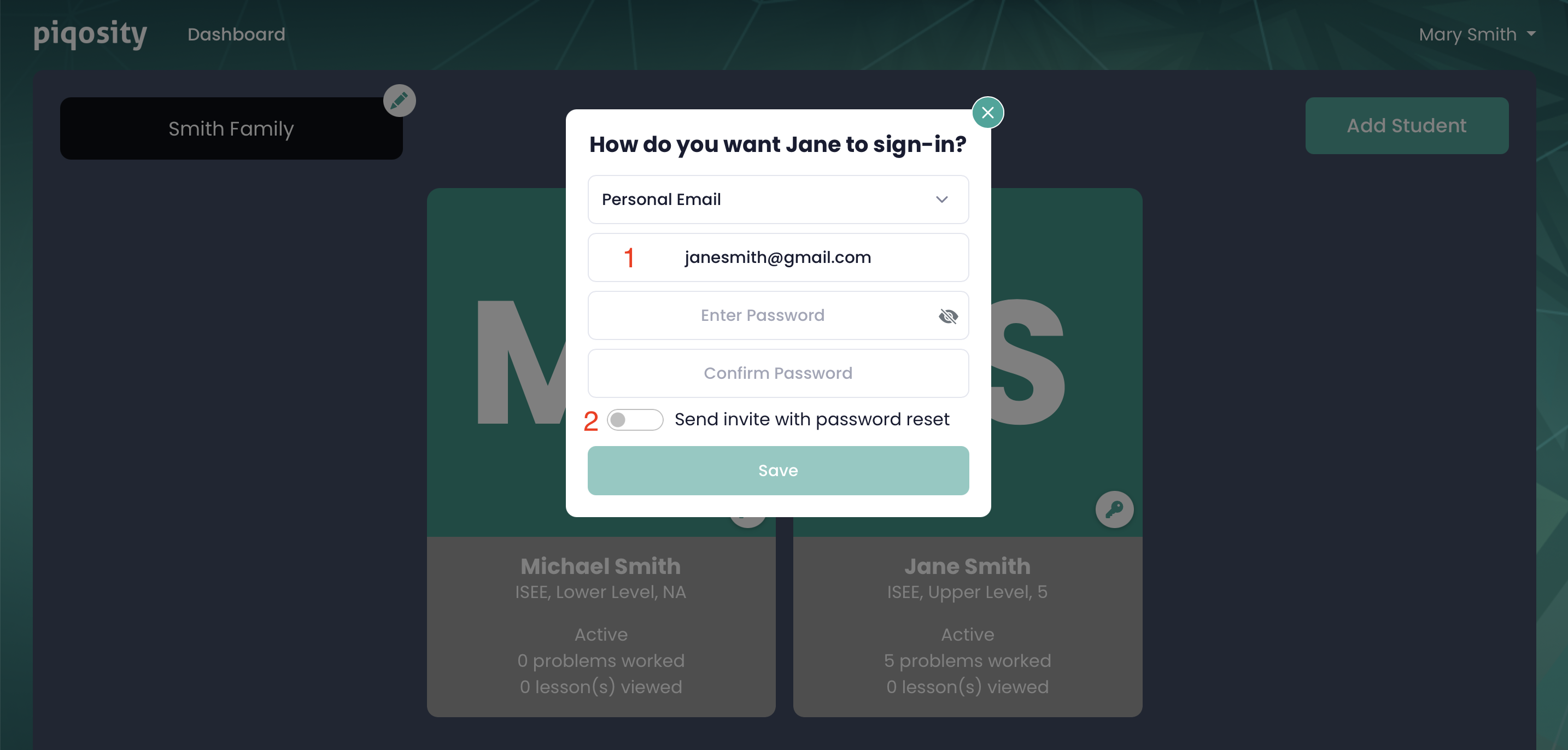
- Personal Email
Default Username
- With this option, your student uses an automatically generated Default Username to log in. This username is listed in the modal that appears upon clicking the key icon.
- Along with the default username, you'll need to provide your student with their temporary default Password, which is also shown in the modal (click the eye icon to hide/show).
- You can change the password at any time using the Change Password fields, or from your student's profile.
Personal Email
- With this option, you enter your student's valid email address for them to use as their username when they log in, along with a new password.
- This option also includes the toggle, Send invite with password reset. If turned on, your student will receive an email inviting them to set their own password.
Impersonating a Student Account
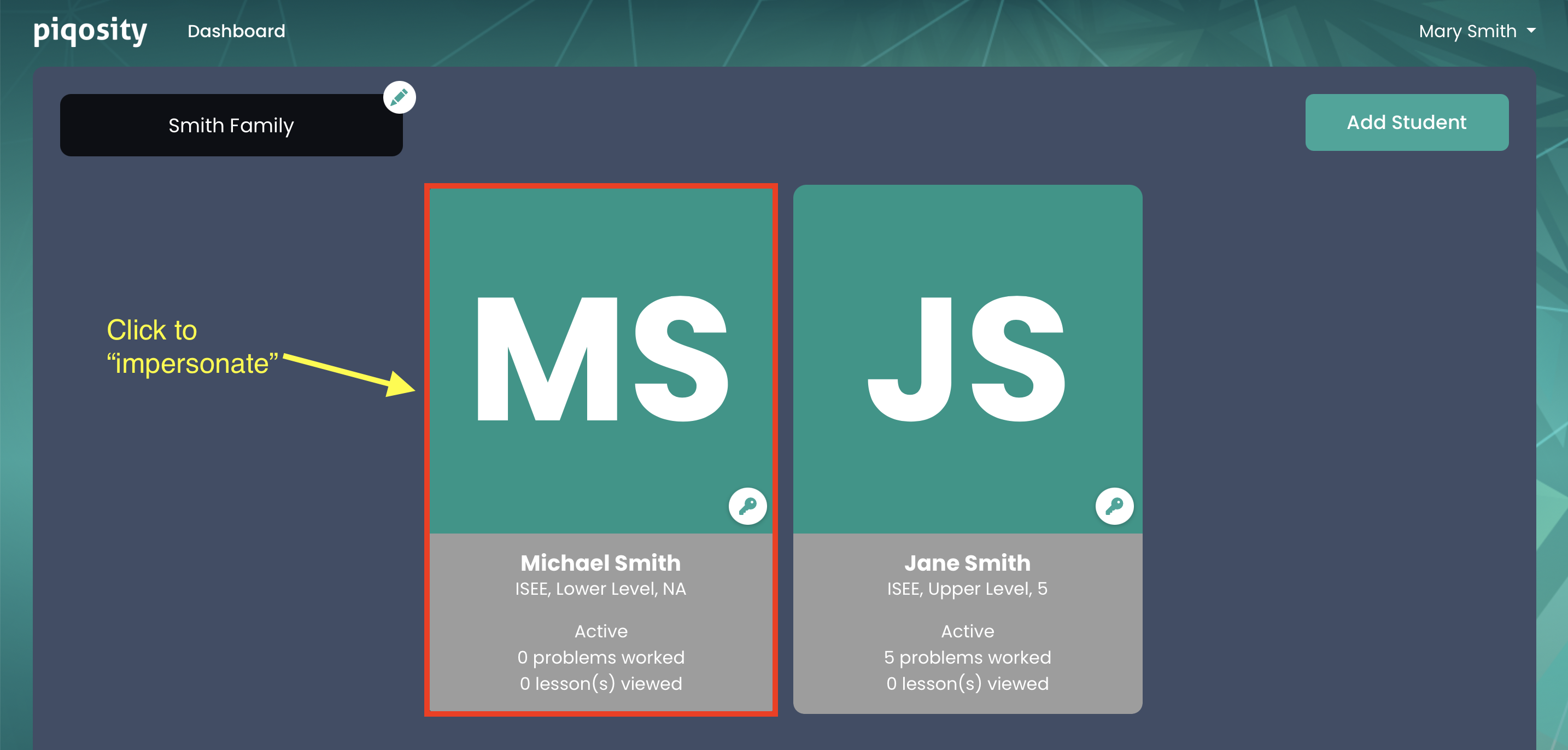
If you click on a student's card from the Dashboard, or their name from the Students tab of your profile, you will impersonate their account. This means that you will see the Piqosity app just as they will see it when they log in.
To learn more about the Student Dashboard, please read this support article.
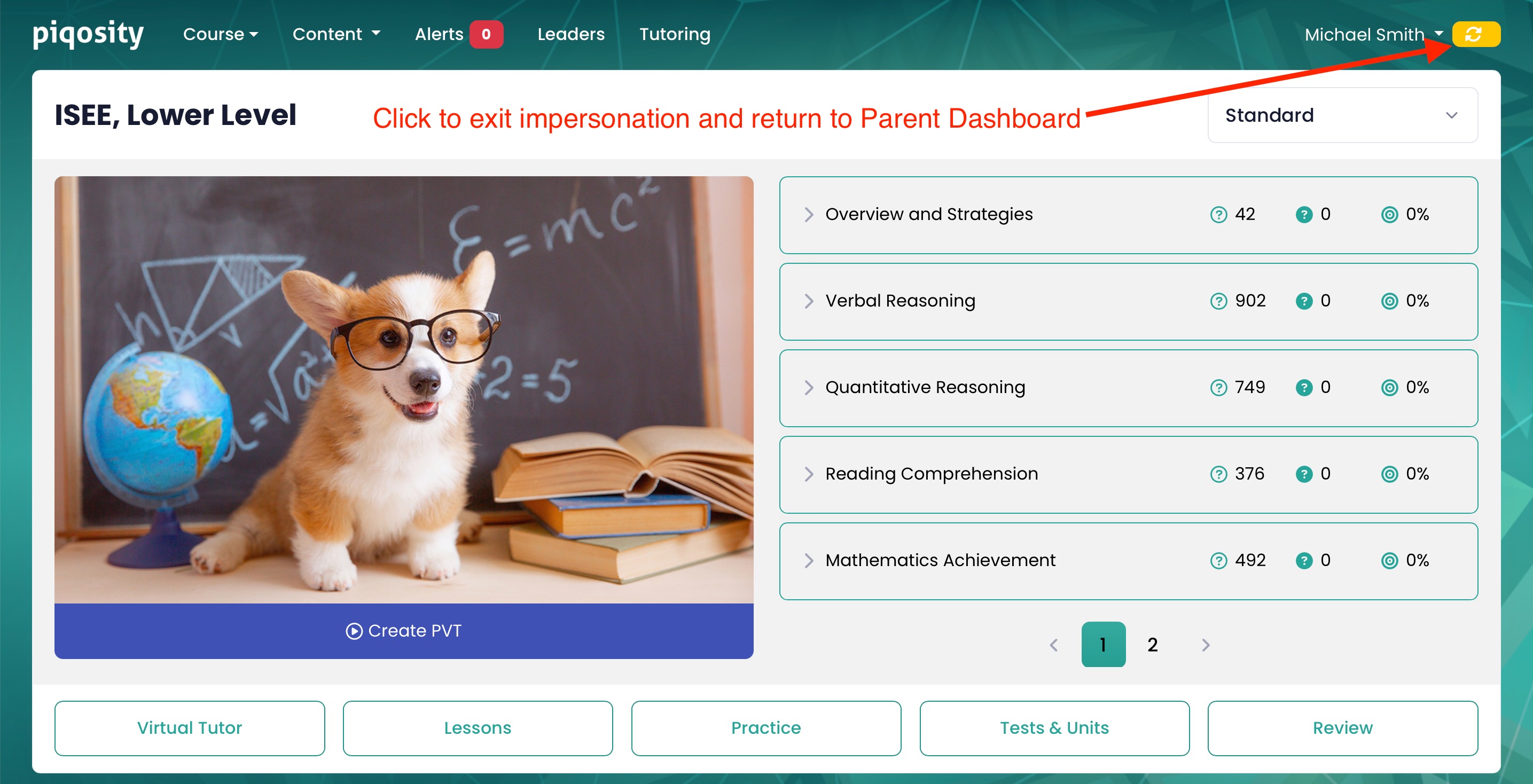
To return to your parent account, simply click the yellow Switch User button in the top-right corner of the screen.
Purchasing a Student License
Your student's account comes with a free, "On-Track" plan that gives them limited access to Piqosity's practice materials and features. If you're ready to purchase a premium plan for one of our courses:
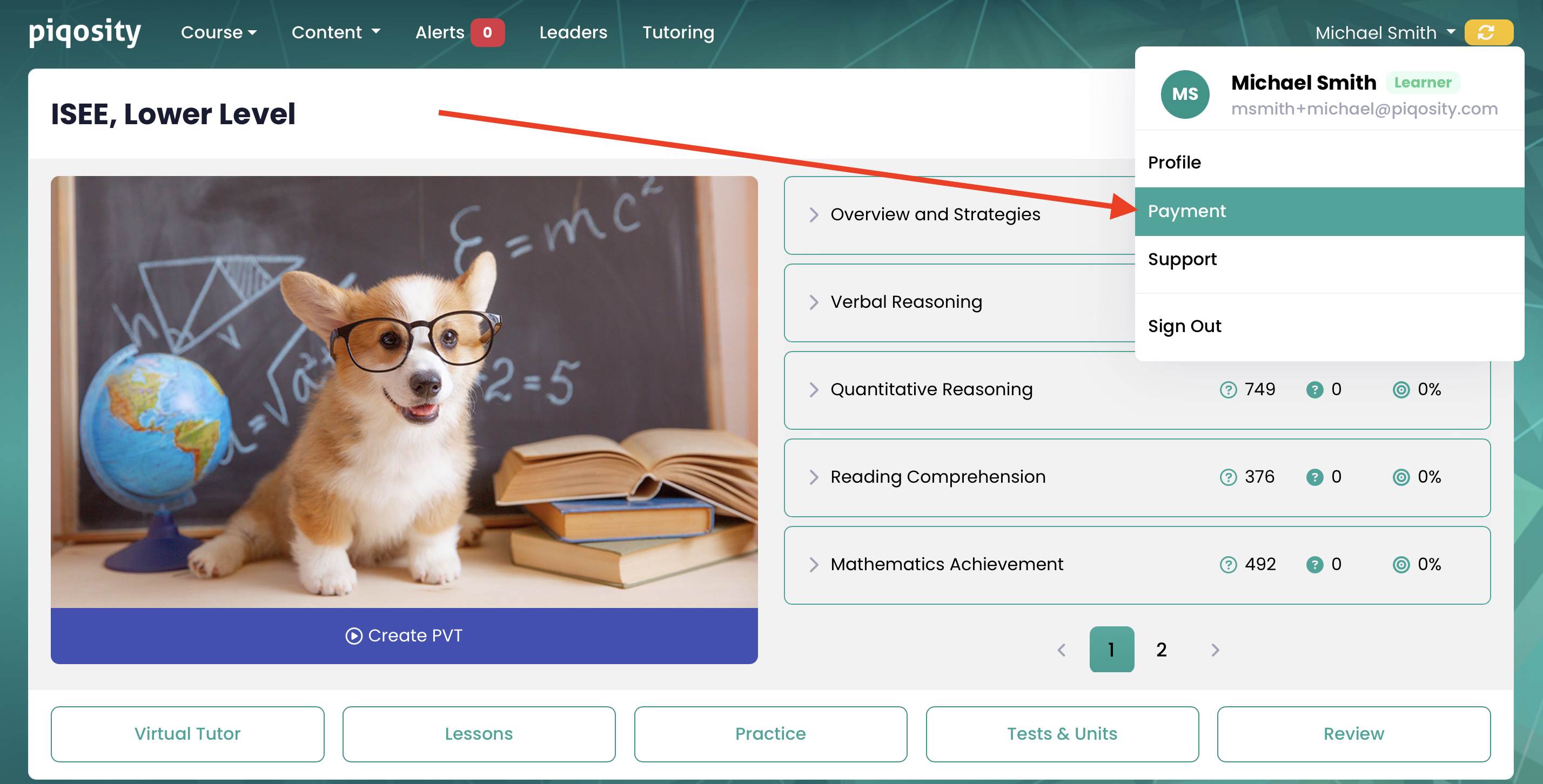
- Impersonate the student whose account you would like to upgrade
- Navigate to the Payments page by selecting it from the dropdown in the top-right
- Click Upgrade for the course you would like to upgrade to see the available options and check out
Viewing Student Progress
To see your student's progress in detail, you can impersonate them as described above to see their Student Dashboard, including their:
- Completed modules in the Piqosity Virtual Tutor
- Progress Report with current projected scores
- Tests & Units page with all of the full-length tests available to them
- Review Past Practice page with a complete summary of their practice and performance
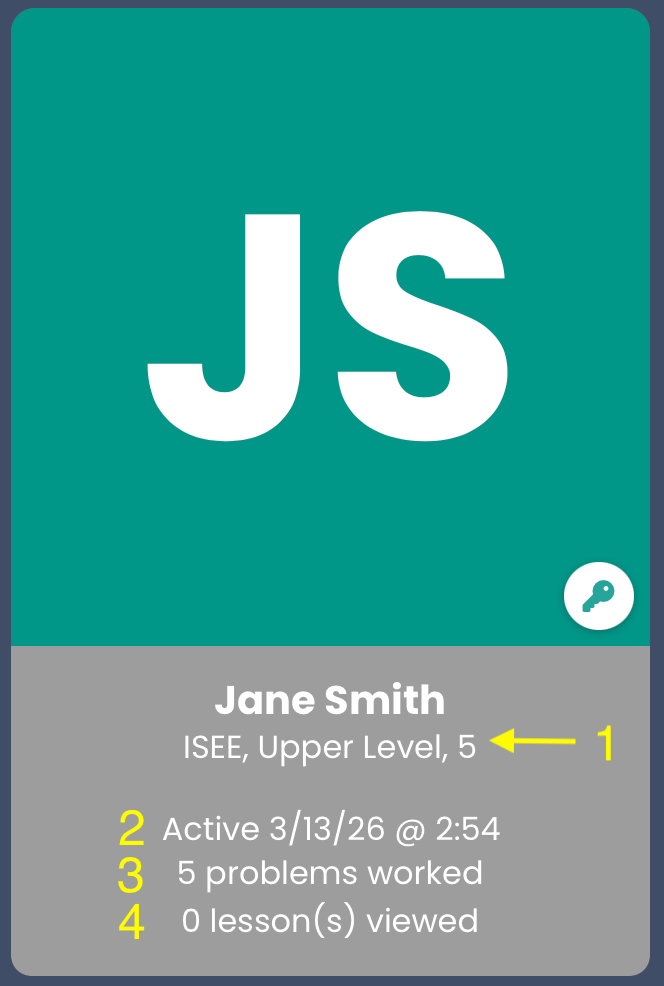
For a quick assessment, you can also see key details at a glance from your Dashboard on their student card, including:
- Current overall score in their Default Course
- When they were last active on the app
- How many questions they recently worked
- How many lessons they recently viewed
Viewing and Updating Your Profile
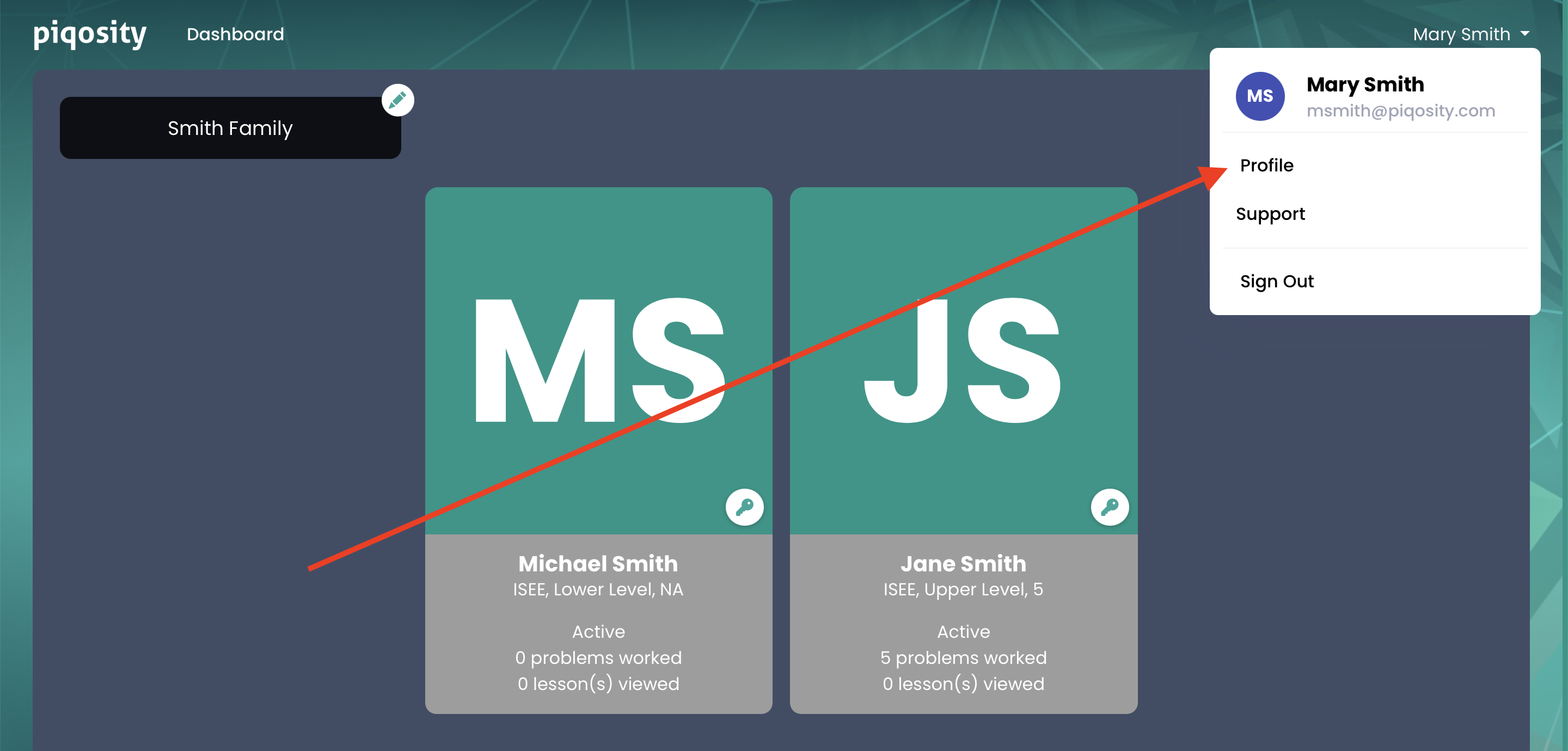
The parent profile is accessed by clicking your name, followed by Profile. It consists of two tabs:
- The Basics tab is where you can view or update information about you and your family, or update your password
- The Students tab is where you can view the students attached to your account in a single table. If you need to remove a student or cancel a pending invitation, you can do so from the Action menu.
Personalizing Your Dashboard
Click the pencil icon next to your family's name to add a custom background to your Dashboard.
Your students can also add a profile picture from their profile. Once added, this picture will appear in their card in place of their initials.